

In our last post, we looked at the value of keeping your family history in a dedicated genealogy software program on your personal computer. Now the next step . . . What if you have your family tree online and you want to transfer it to a genealogy program or send a copy to a relative? How do you do that?
You will need to create a new file in a universal genealogy file format called GEDCOM (pronounced jed-com). The name is an acronym for Genealogical Data Communication, and it’s a way of moving the text in your tree from one program to another. It works much like saving a document in PDF format; it will allow you to read information even if you don’t have the software from which the original data was created. The difference, however, is that GEDCOM will transfer text only—not photos or documents as you can do with a PDF.
If you are using a genealogy software program on your own computer, you will find the ability to export your text as a GEDCOM file on the File menu/Export. Each program has different directions, but if you follow the directions on the screen, you will be able to create your file and save it. Once you have made the file, you should be able to open it in any other genealogy program.
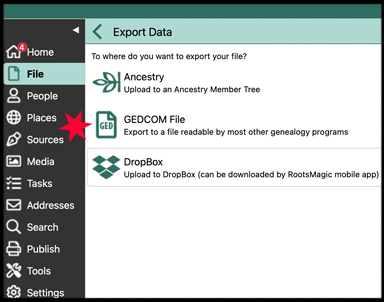
This is also the process you will use to transfer your data from your computer to an online tree or from a previously created tree back to your computer. One exception is if you are working with a tree on FamilySearch, which has no ability to download your file as a GEDCOM. You will need to locate a third-party software program to create that GEDCOM.
Remember that GEDCOM files are text-only. The only way to preserve the photos and documents you have linked to your tree is to relink them after you have moved your tree to its new location.
Another important thing to remember is if you are accepting a GEDCOM file from someone else, you should always open it in a separate file and never just merge it with your original information. You don’t want to add someone else’s mistakes into your file, nor do you want to have to sort through potential duplicates. Once you have opened the GEDCOM as a separate file, you can decide how to proceed. Better safe than sorry!
We have a page on our website with more details. We also have a monograph in PDF format on our website, free to members, that may be helpful to you in understanding what GEDCOM is and how to use it. If you are not a member, that same monograph is offered for sale in our online store.


